Mozilla Thunderbird is one of the most popular email programs at the SSCC. This article will show you how to configure it to read your SSCC email.
Obtaining Thunderbird
Thunderbird is open-source software and can be downloaded from http://www.mozilla.org/products/thunderbird/. If your PC is in the Sewell Social Sciences building we'll be happy to install it for you (just contact the Help Desk) but it's very easy to do yourself. Just download the installation program, run it, and accept all the default settings.
Setting Up Your Account
When your run Thunderbird for the first time it will recognize that you need to set up an email account and ask for your name, email address and password.
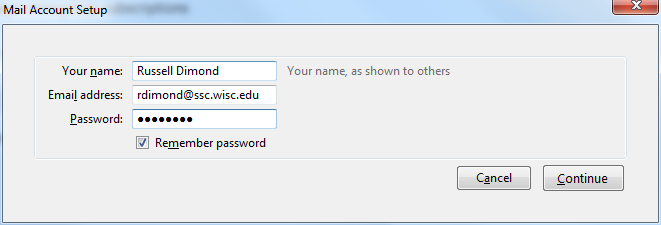
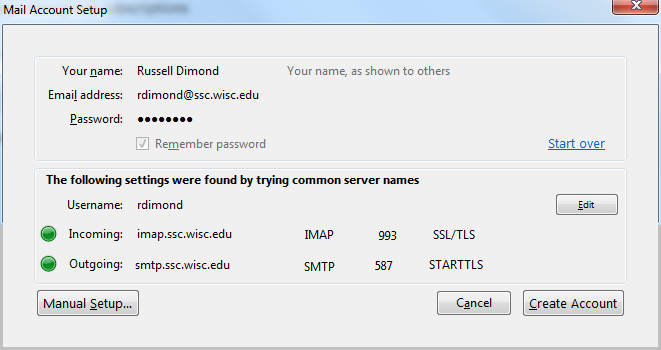
When you click Continue, Thunderbird will go through a list of common email server names and settings until it successfully connects to the SSCC's email servers. Once it does, all you need to do is click Create Account.
Configuring Thunderbird
At this point you're ready to read your mail. However, there are some changes you may want to make. Click Tools, Account Settings to begin.
Local Copies of Messages
Thunderbird will keep a copy of all your messages on your computer by default. This speeds up many operations, but if you have a lot of mail it will use a substantial amount of disk space.
This is a particular problem on Winstat because Thunderbird must keep the copied messages on your U: drive. We recommend you not use Thunderbird on Winstat (use Webmail instead) but if you do, you must tell it not to keep messages on your computer or you may run out of space in your U: drive.
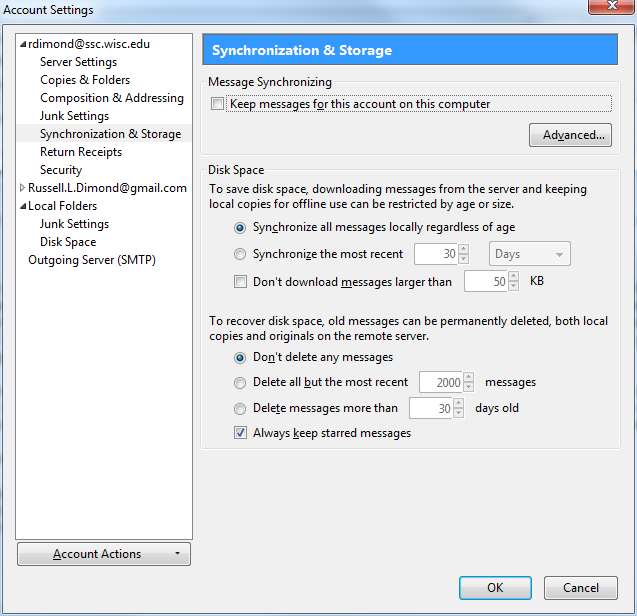
To tell Thunderbird not to keep a local copy of your messages, click Synchronization & Storage and then uncheck Keep messages for this account on this computer. There are also options to keep some messages on your computer but not others.
Signatures
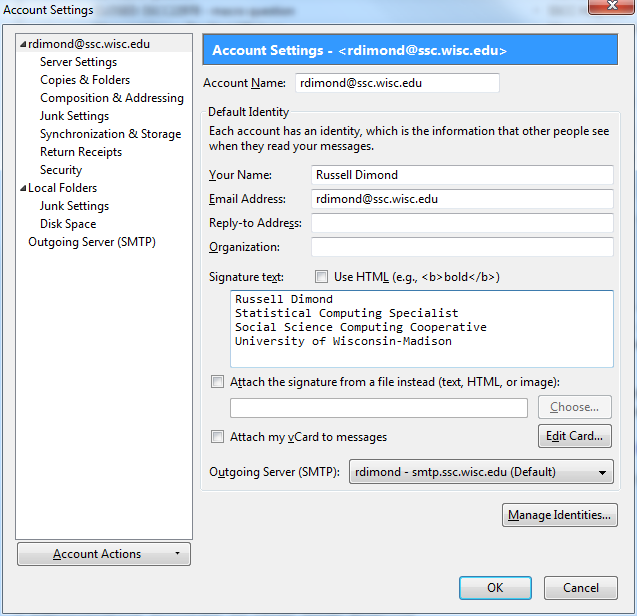
If you'd like all your email messages to contain a signature, click on your email address on the left of the Account Settings window (Thunderbird uses your email address as the name of your email account). Then type your desired signature in the Signature text box.
Folders
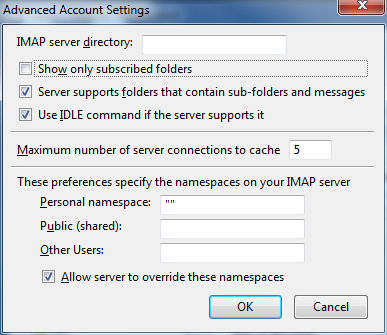
By default, Thunderbird will only show you folders you have subscribed to. If you have a slow Internet connection, not subscribing to large folders may speed up the process of checking your mail. However, most users will want to see all their folders.
Click on Server Settings, then the Advanced button in the lower right. Uncheck the box for Show only subscribed folders.
Replies
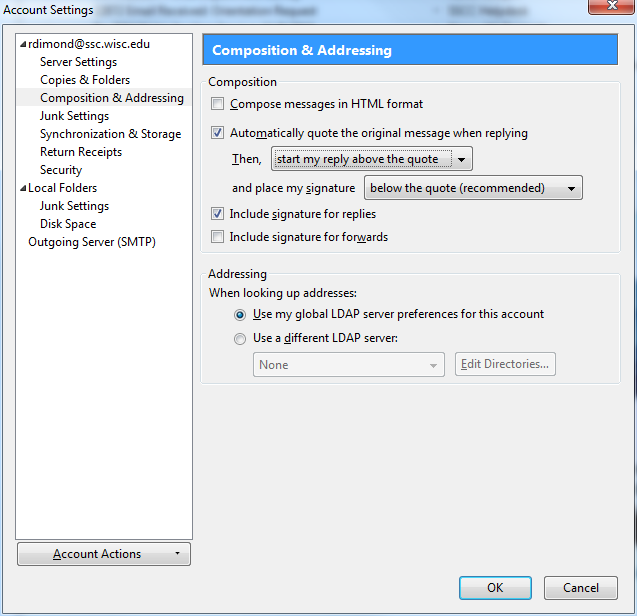
When you reply to a message, Thunderbird will by default put your reply after the message you're replying to. If you prefer that the reply come first, click Composition & Addressing. Then change the drop-down that says start my reply below the quote to start my reply above the quote. You can also tell Thunderbird to send messages in plain text rather than HTML by unchecking Compose messages in HTML format.
Reading Additional Email Accounts
If you have an email account provided by a third party such as Gmail, you can have Thunderbird read it as well as your SSCC account. Click File, New, Mail Account. You will then get a Mail Account Setup window identical to the one you got when you first ran Thunderbird. Give your name, the email address of the account you want to add, and the password associated with that account. Thunderbird will again attempt to discover the proper settings. It should succeed for any major email provider.
We recommend that you not use third party email for University business, including research, and especially not for sensitive information. If an email meets the definition of a record and must be retained, it does not matter whether you used a University email account or a third party account.
On the other hand, SSCC email (like all University IT resources) must not be used for political or commercial purposes--see the campus Appropriate Use Policy.
Last Revised: 9/7/2011